
Emails
Send your website's emails (sign-in links, invites and messages) through Cloudflare Email Sending, from your own address.
@alpineux.bsky.social/emailsOr open Registry in your EmDash admin and search for this name.
Overview
Emails sends your website's emails through Cloudflare Email Sending, from your own address.
Every email your website sends goes through it: sign-in links, invites for your team, and messages from other apps like Forms. People get them from your business address, not from a generic one.
What you get
- A setup page that walks you through Cloudflare step by step. It takes about five minutes.
- A test button, so you know emails arrive before you rely on them.
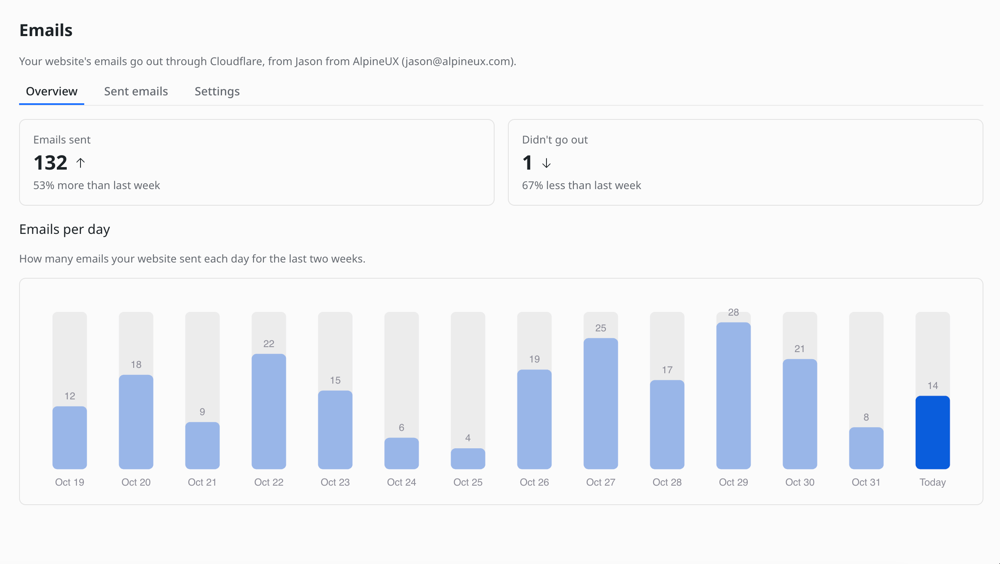
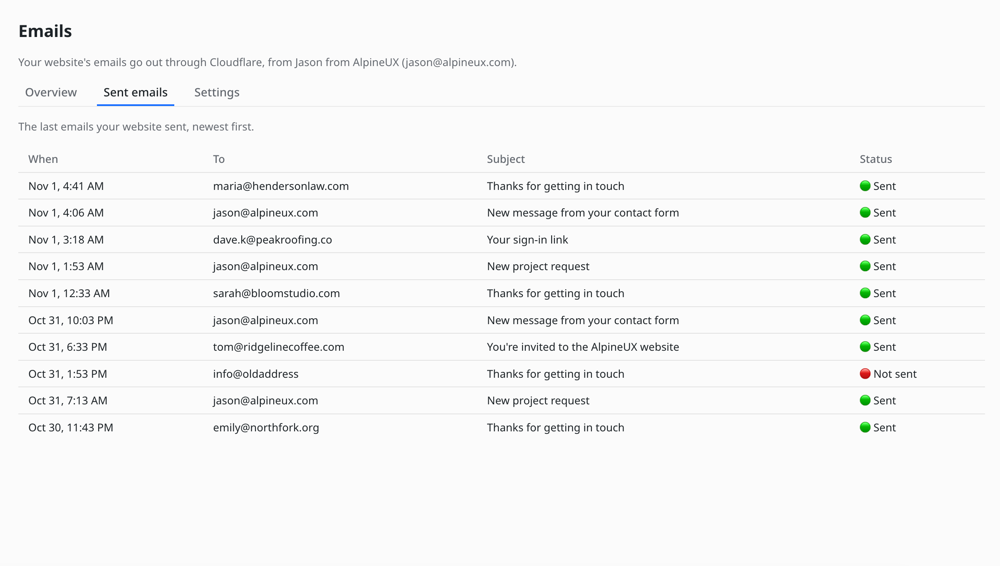
- An overview of how many emails went out each day, and the latest ones with who they went to.
- A plain explanation when an email doesn't go out, and what to do about it.
- A daily limit for emails from apps like Forms, so a flood of spam can't get your sending paused. Sign-in links always go out.
What you need
- A website that runs on Cloudflare.
- Your website's address (domain) set up in Cloudflare Email Sending. The setup page shows you how.
Emails is for your website's own emails. It's not for newsletters.
Screenshots
Permissions
Plugins get only the capabilities they declare and you approve. Your EmDash admin lists these again before anything installs.
FAQ
Does it cost anything?
Emails is free. Cloudflare Email Sending has its own pricing and limits, which you can see in your Cloudflare account.
Can I send newsletters with it?
No. Cloudflare only allows your website's own emails, like sign-in links, invites and replies to forms.
My test email didn't arrive.
Look in your spam folder first. If it isn't there, the Emails page says why it didn't go out. Most often your website's address isn't set up in Cloudflare Email Sending yet.
Emails says my key can do more than send emails.
That key could change your website in Cloudflare, so Emails won't keep it. Click Create your key to make a new one that can only send emails.
What is the daily limit?
Apps like Forms can send up to 200 emails a day (you can change this on the Settings tab). It stops spam from getting your sending paused. Sign-in links and invites always go out.
Can I change the address my emails come from?
Yes, on the Settings tab. The new address has to be on a domain that's set up in Cloudflare Email Sending.
What happens if I disconnect?
Your website stops sending emails through Emails until you connect again, so sign-in links won't arrive in the meantime.
Security
What Emails can do
- Connect to one place only: Cloudflare's API (
api.cloudflare.com). - Deliver your website's emails. It can't read or change your content, media or users.
Your Cloudflare key
- Stored encrypted, and never shown again after you paste it.
- The key made with Create your key can only send emails and read your account's name. Emails refuses keys that can change your website.
- Disconnecting, or uninstalling with "Also delete plugin storage data", deletes it.
What Emails keeps
The address and name your emails come from, your Cloudflare account's name and ID, your daily limit, and a short history: the last 20 emails (when, to whom, subject, sent or not) and a count per day for two weeks. It never keeps the content of your emails.
Only people who can manage plugins in your admin can see the Emails page.
Reporting a problem
If you find a security problem, please email jason@alpineux.com instead of posting it publicly.
Changelog
0.1.2
- Removed the "waiting for your first email" notice. Emails can't see which email service your website picked, so it could stay up after everything was working. The Settings tab links to your email settings instead, which show it.
- Test emails sent from Settings → Email no longer count against the daily limit.
- Screenshots and more information on this page.
0.1.1
- Fixed an error ("Too many subrequests") that showed after connecting or sending a test email, even though the email had gone out.
- New daily limit for emails from apps like Forms (200 by default), so spam can't get your sending paused.
- Emails won't accept a Cloudflare key that can change your website.
- Disconnecting keeps your sender details and email history.
- Uninstalling with "Also delete plugin storage data" deletes your Cloudflare key too.
- New icon.
0.1.0
- First release.
Installation
- Click Install and confirm.
- Open Emails in the admin menu, under Apps.
- Click Open Email Sending, sign in to Cloudflare and choose the account your website is in. If your website's address isn't listed yet, click Onboard Domain, pick it and click Done.
- Back in Emails, click Create your key. Cloudflare opens a form that's already filled in. Click Continue to summary, then Create Token, and copy the key.
- Paste the key, enter the address your emails should come from and click Connect. We send you a test email.
That's it. If Emails is the only email service on your website, EmDash uses it automatically. Settings → Email shows which service is sending your emails, and its Send test email button checks the whole thing.
Before you start
Your website needs an encryption key set up (EMDASH_ENCRYPTION_KEY), because Emails stores your Cloudflare key encrypted. Whoever looks after your website can add it in a minute.
Keep exploring
More plugins like Emails
Browse by keyword, or see everything @alpineux.bsky.social publishes.