
@desidashlab.bsky.social/whatsapp-chat
WhatsApp Chat Button
A WhatsApp button on every page. Visitors tap it and start chatting with you. Nothing to set up beyond your number.
About WhatsApp Chat Button
A WhatsApp button on every page. Visitors tap it and start chatting with you. Nothing to set up beyond your number.
Screenshots
Faq
Do I need WhatsApp Business or an API?
No. The button opens a normal WhatsApp chat with your number, the same as a wa.me link. Any WhatsApp number works, personal or business. No approval, no fees.
What does the visitor see?
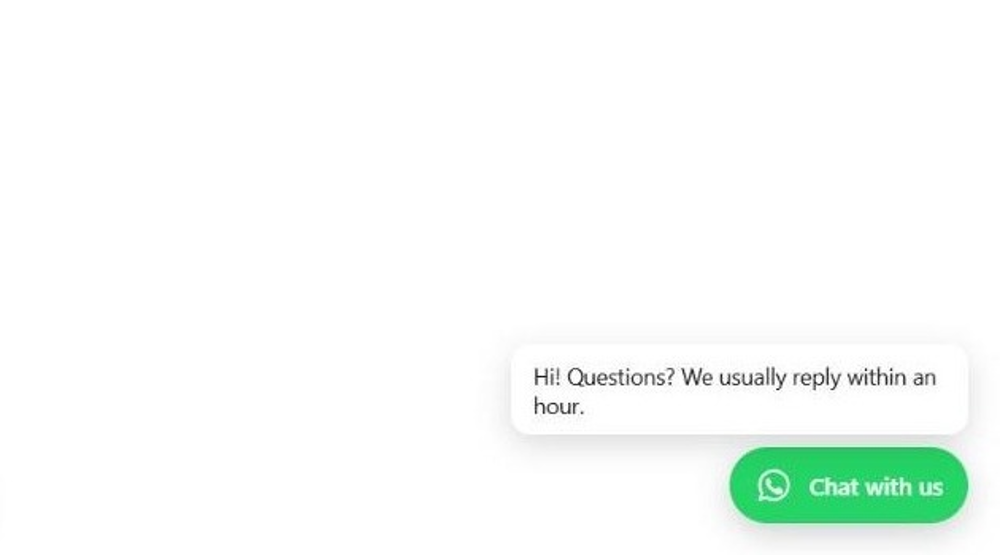
A green WhatsApp button in the bottom corner. Tapping it opens WhatsApp on a phone, or WhatsApp Web on a computer, with your number and the message you set, for example "Hi! I was reading About us on your site and have a question."
How do I know which page the visitor was on?
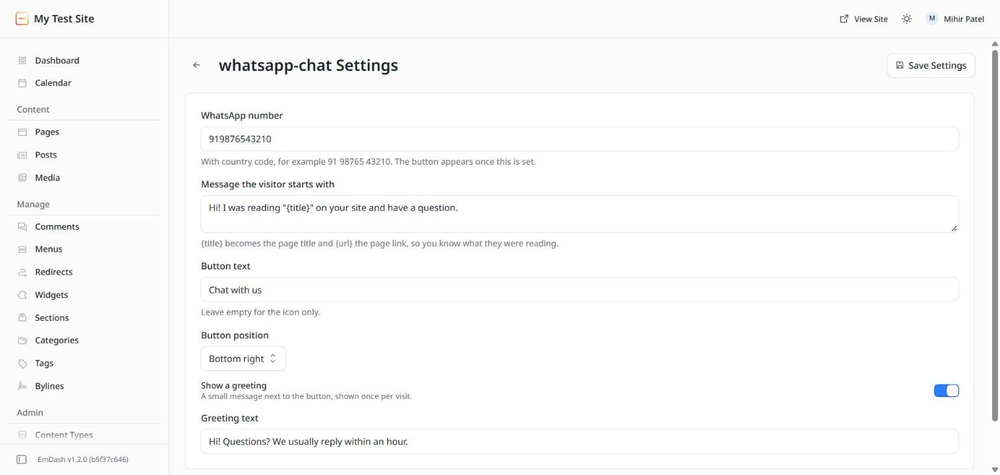
Put {title} or {url} in the message setting. {title} becomes the page title and {url} the page link, so the first message tells you exactly where they were.
Can one page go to a different number?
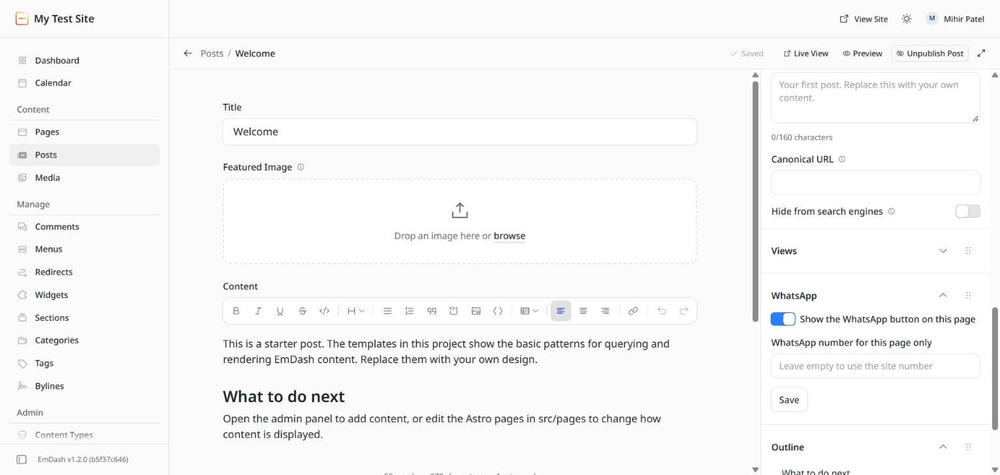
Yes. Open that post or page in the editor and use the WhatsApp box in the sidebar. For example, a product page can go to the sales line while the rest of the site goes to the main number.
Where do I see how many people tap it?
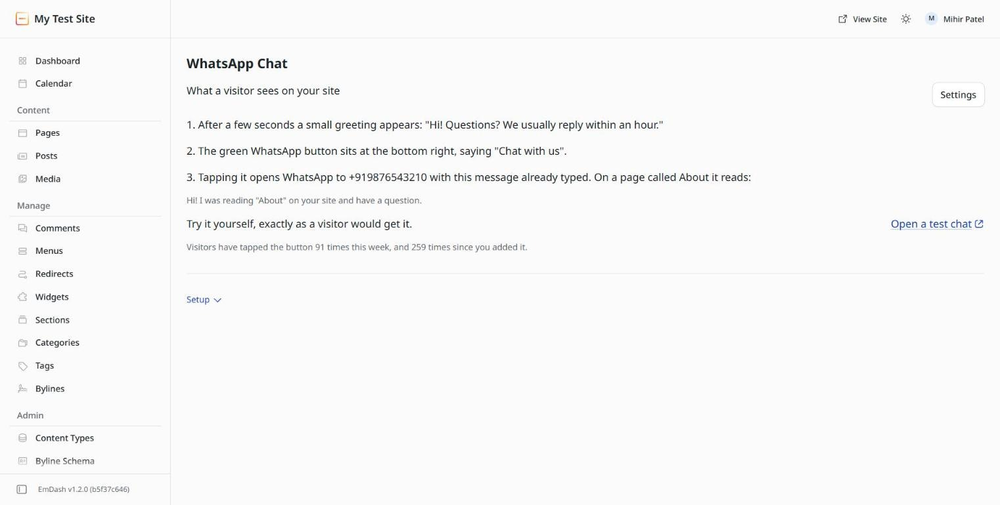
On the WhatsApp Chat page, in one line: how many times visitors tapped the button this week and in total. Enough to know the button is working and worth keeping. The messages themselves tell you which page each visitor was on, because the message carries the page title.
Does it track visitors?
No. Only the number of taps is counted. No cookies, nothing personal stored, and the chat itself happens in the visitor's own WhatsApp.
Changelog
0.1.0
- First release. A WhatsApp button on every page with your number, message, text, and position.
- Greeting shown once per visit.
- A different number for any single entry, from the editor sidebar.
- One line on the WhatsApp Chat page: taps this week and in total.
Installation
Three steps
- In your EmDash admin open Registry, search for WhatsApp Chat Button, and click Install. It asks for no permissions.
- Open Plugins, click Settings next to WhatsApp Chat Button, and type your WhatsApp number with the country code. Save.
- Open WhatsApp Chat in the left menu, copy the snippet, and paste it into your theme once, just before
</body>in the base layout. If someone else built your site, send them the snippet.
The button appears on every page right away. Change the message, text, position, or greeting any time in Settings; the site picks it up without touching the theme again.