
@sneaps.io/image-generator
Image Generator
Generate featured images for your entries with AI, one by one or in bulk. OpenAI, OpenRouter and Cloudflare Workers AI.
About Image Generator
Generate featured images for your entries with AI, from one Image Generator page in the admin or from the entry editor. It works with OpenAI, OpenRouter and Cloudflare Workers AI, and saves the images to your EmDash media library.
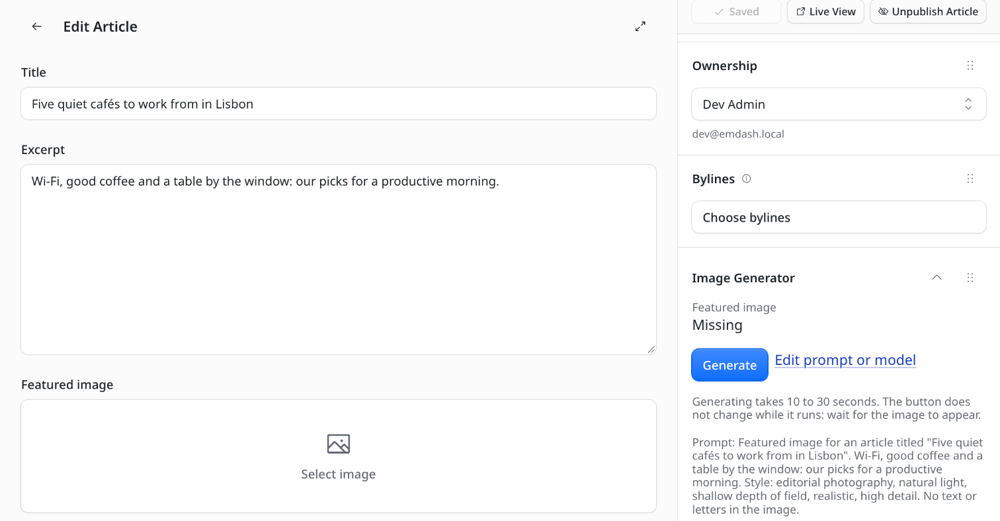
One entry. In the editor, open the Image Generator panel and press Generate, look at the result, then Attach it or Regenerate. On the admin page you can also edit the prompt and choose another model first.
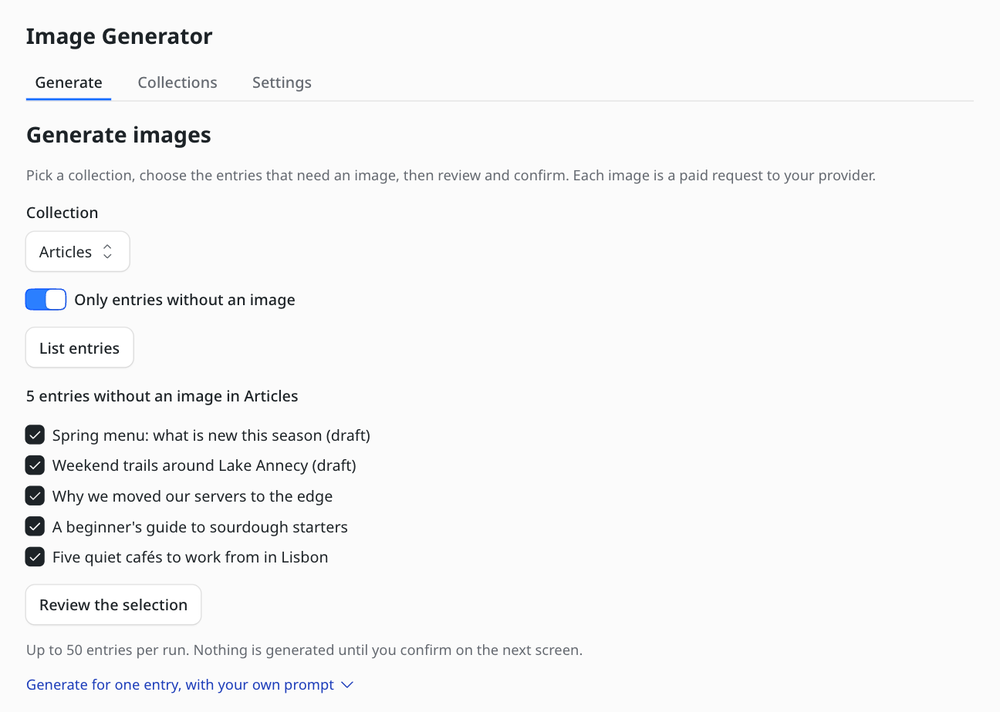
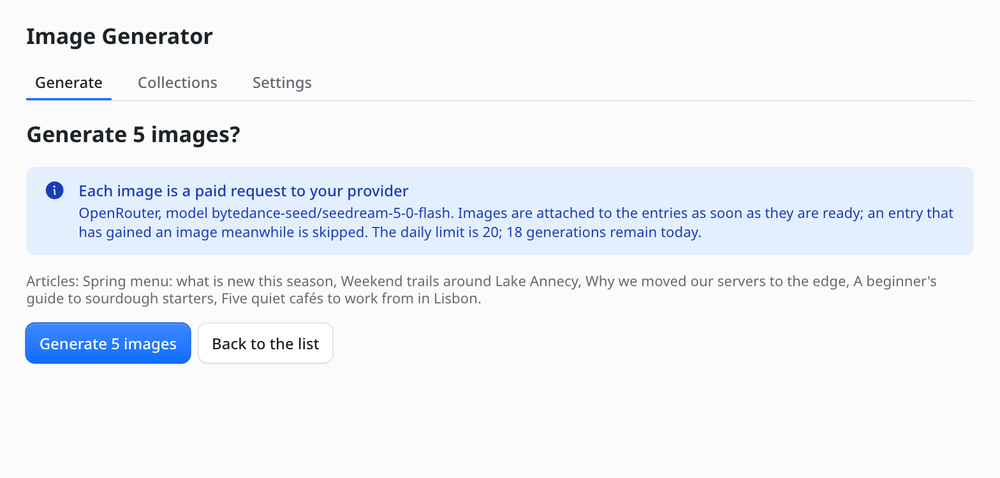
Many entries. Pick a collection, check the entries that need an image, review and confirm. Images are made one at a time in the background, with progress, Stop and Resume. The run stops by itself if the provider rejects the key, credits run out or the daily limit is reached. Entries that already have an image are never touched.
Built to stay under control
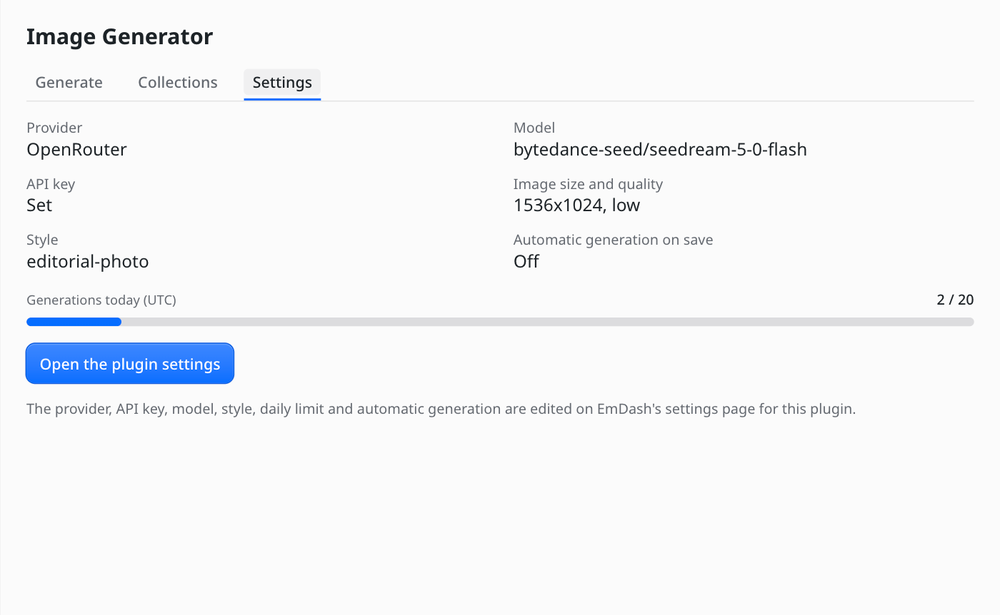
- Every image is a paid request to your provider. A hard daily limit (20 by default) is enforced before each call and given back when a call fails.
- Nothing is generated without a click and a confirmation. Automatic generation on save exists, and is off.
- Bulk runs are for editors and administrators.
- If a collection uses drafts, the image goes into the draft: publish the entry for it to go live.
You pay your provider directly. The plugin has no server of its own.
Screenshots
Faq
Does it replace an image I already have? Never in a bulk run. For one entry, the new image only replaces the old one when you press Attach.
Why does it say the request timed out?
Plugins have 30 seconds per request. high quality can exceed that on some models: use low or medium.
"Rejected the API key"? There is one API key setting for the selected provider. After switching provider, enter that provider's key. The message says when the saved key looks like another provider's.
"Daily limit reached"? The counter resets at 00:00 UTC. Raise Max generations per day in the settings if you want more.
Cloudflare FLUX.2 models do not work.
The @cf/black-forest-labs/flux-2-* models are not supported yet. Use @cf/black-forest-labs/flux-1-schnell, or the third-party black-forest-labs/flux-2-max.
"Needs credits or a payment method"? Third-party Cloudflare models use Unified Billing: load credits in AI Gateway.
Nothing moves while I wait in the editor. Generating takes 10 to 30 seconds and the editor shows no spinner. A second click on the same entry is refused, so you are never charged twice by accident.
Where is the image? In the entry's image field, and in the media library. If the collection uses drafts, publish the entry.
Security
Permissions, and why
- Read and write content: read titles and excerpts, set the image field.
- Read and write media: save generated images, and delete previews you discard.
- Read schema: list your collections and their image fields.
- Network, limited to
api.openai.com,openrouter.ai,api.cloudflare.comand*.r2.cloudflarestorage.com: call the image providers. The last host is only used to download an image that Cloudflare's third-party models return as a signed link, and only from the AI Gateway outputs bucket.
Your data
Prompts (the entry title, excerpt and your style text) are sent to the provider you select. API keys are stored encrypted with your EMDASH_ENCRYPTION_KEY and are never written to logs or to the generation history. The history keeps the collection, entry id, provider, model, status, a media reference and, for failures, the error message: never prompts, images or keys.
Reporting a vulnerability: write to security@sneaps.io (or use https://www.sneaps.io/contact).
Changelog
First release
- One Image Generator admin page with three tabs: Generate, Collections and Settings.
- Generate images for one entry, with an editable prompt and a preview, from the editor panel or the admin page.
- Bulk generation for several entries: selection, confirmation, background run with progress, Stop and Resume.
- Providers: OpenAI, OpenRouter, Cloudflare Workers AI and Cloudflare third-party models.
- Hard daily limit, per-entry lock, optional automatic generation on save.
- API keys stored encrypted.
Installation
- Install the plugin and approve its permissions (listed under Security).
- Make sure your host has the
EMDASH_ENCRYPTION_KEYenvironment variable, so API keys can be stored encrypted. - Open the plugin's settings page. Choose the provider and enter its API key. For Cloudflare Workers AI, use a token with the Workers AI permission and also fill in your account ID. Leave model empty to use the default.
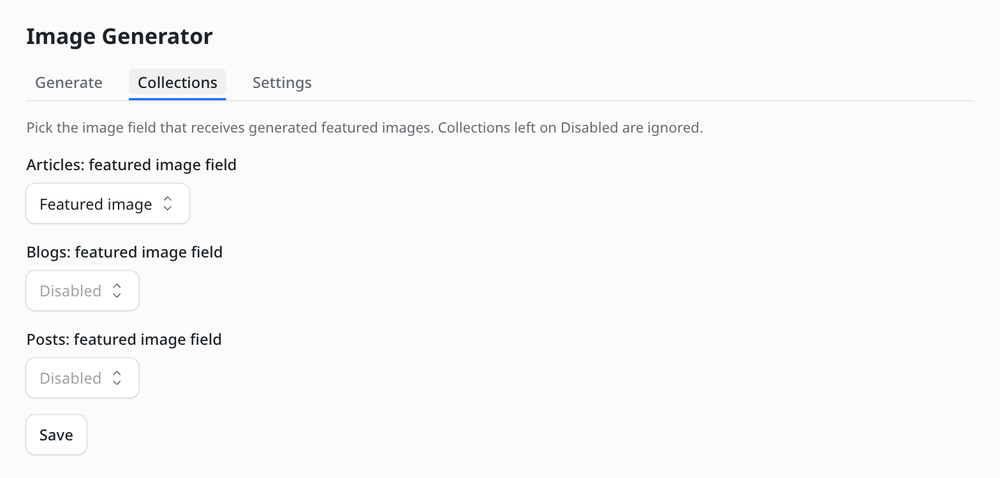
- Open Image Generator in the admin menu, then the Collections tab, and choose the image field of each collection you want to use.
- Optional: pick a style preset, edit the prompt template (
{title},{excerpt},{collection},{style}) and set the daily limit.
Start with low quality: prices differ a lot between providers, models and quality levels.
Cloudflare third-party models (for example xai/grok-imagine-image-2.0) are billed through Unified Billing. They need credits in AI Gateway, Authenticated Gateway turned on, and a token with the AI Gateway Run permission.